
Did you think MFA is the way to secure Microsoft 365? Then read this article!
Multi-Factor Authentication (MFA) adds an extra layer of security during sign-in to Microsoft 365. This security layer consists of multiple factors, for example:
Factor 1: Password.
Factor 2: Push notification from the Microsoft Authenticator app.
Factor 3: Phone PIN to approve the push notification.
By applying this security layer, it can be prevented that a malicious actor can simply log in when they have obtained the password. A password can be obtained through phishing or a data breach in another service.
Regarding the latter, research conducted some time ago showed that 40% of people in the Netherlands reuse their password [1].
Multi-Factor Authentication ensures that 99.9% of attacks on accounts can be prevented [2]. However, it is still possible for a malicious actor to intercept the MFA session—also known as a “token”—through phishing and gain unauthorized access to the Microsoft 365 environment.
One method for this is using the Evilginx tool [3]. With this tool, a Man-in-the-Middle attack can be carried out to intercept communication between the user and Microsoft 365.
Such an attack works as follows:
- The user receives a phishing email containing a link, for example an email prompting them to change their password or log in to a new company application.
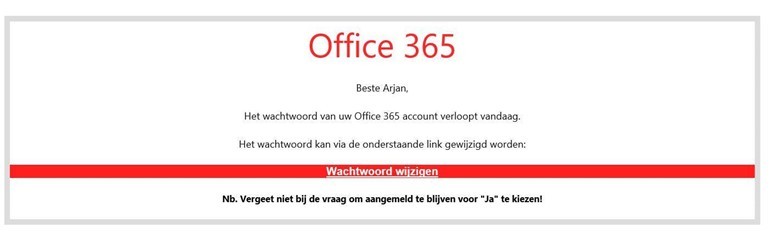
- This link redirects to the attacker’s server, which displays the actual Microsoft login page and, after entering the username, also shows the company branding if it has been configured.
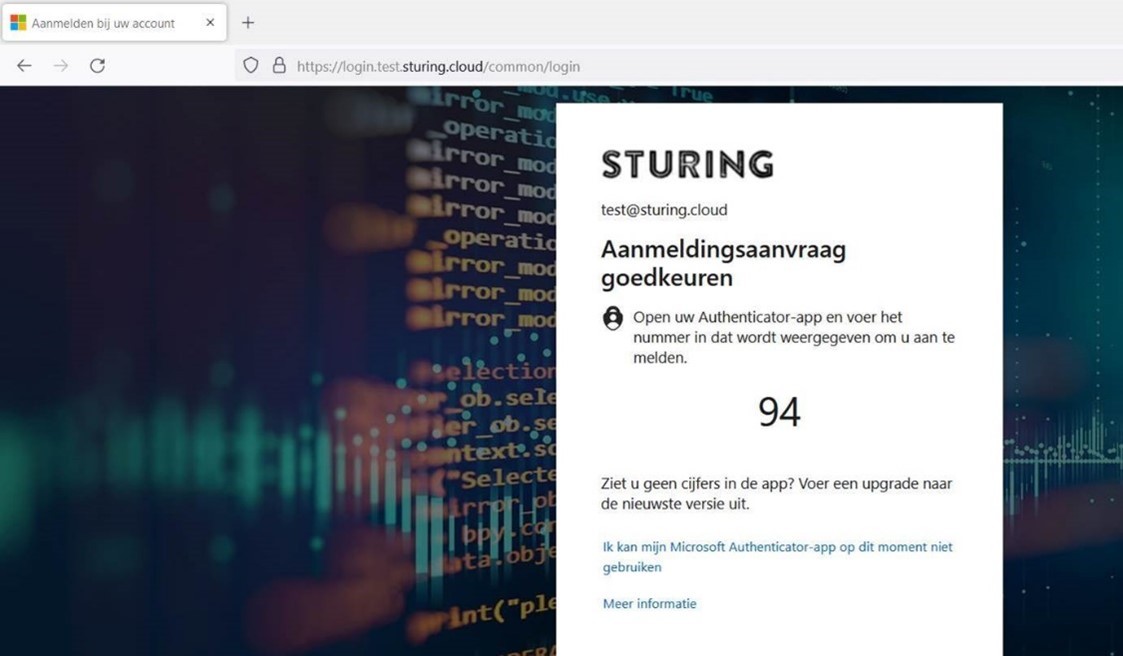
- The user enters their password and confirms the sign-in, for example via a push notification in the Authenticator app.
- The attacker sees a notification of a successful login and can then retrieve the username, password, and token.

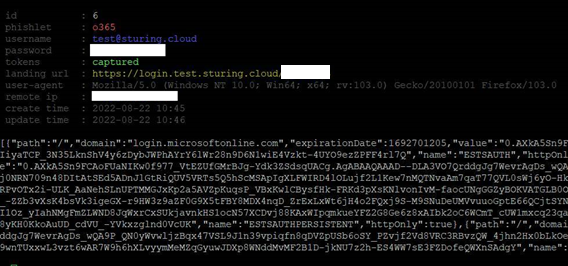
- By importing the token into a web browser, the attacker can gain access to Microsoft 365 without the user noticing.
To protect yourself against such an attack, you can do the following [4]:
- When you see a Microsoft 365 login screen, check the URL in the address bar. Immediately contact the IT department if it does not start with https://login.microsoftonline.com.
- Configure Conditional Access so that a session expires after a certain period of time.
- Use Defender for Cloud Apps to send an alert when an account is accessed from different locations.
- Register all devices that should have access to the Microsoft 365 environment in Intune. Configure a compliance policy and set Conditional Access so that only devices marked as “compliant” can access the Microsoft 365 environment.
Of the options mentioned, the last is the most secure, as it prevents a malicious actor from accessing the Microsoft 365 environment unless they have a registered device.
[1] https://tweakers.net/nieuws/135931/veertig-procent-van-nederlanders-hergebruikt-wachtwoord.html
[3] https://github.com/kgretzky/evilginx2
[4] https://jeffreyappel.nl/protect-against-aitm-mfa-phishing-attacks-using-microsoft-technology/
Disclaimer: this article was written in a personal capacity and based on my technical interest.
 Arjan Sturing — Microsoft 365 Security Blog